Your Instagram account can be accessed from multiple devices, including smartphones, tablets, and computers. If you’ve ever logged in on a friend’s phone, a public computer, or an old device, it’s important to review your active login sessions regularly. This helps you identify unauthorized access and remove devices you no longer use.
In this guide from Nobbe.site, you’ll learn how to check your active Instagram login sessions, log out unwanted devices, and keep your account secure from hackers.
Why Should You Check Active Login Sessions?
Monitoring your login activity helps you:
- Detect unauthorized access.
- Remove old or unused devices.
- Protect your personal information.
- Prevent hackers from staying logged in.
- Improve your overall Instagram security.
Checking your login history only takes a few minutes and can help prevent account theft.
Signs Someone Else May Be Using Your Account
If you notice any of the following, someone else may have access to your Instagram account:
- You receive login alerts from unknown locations.
- Your password no longer works.
- Posts or messages appear that you didn’t create.
- Your profile information has changed.
- You notice unfamiliar devices in your login history.
If any of these happen, review your active sessions immediately.
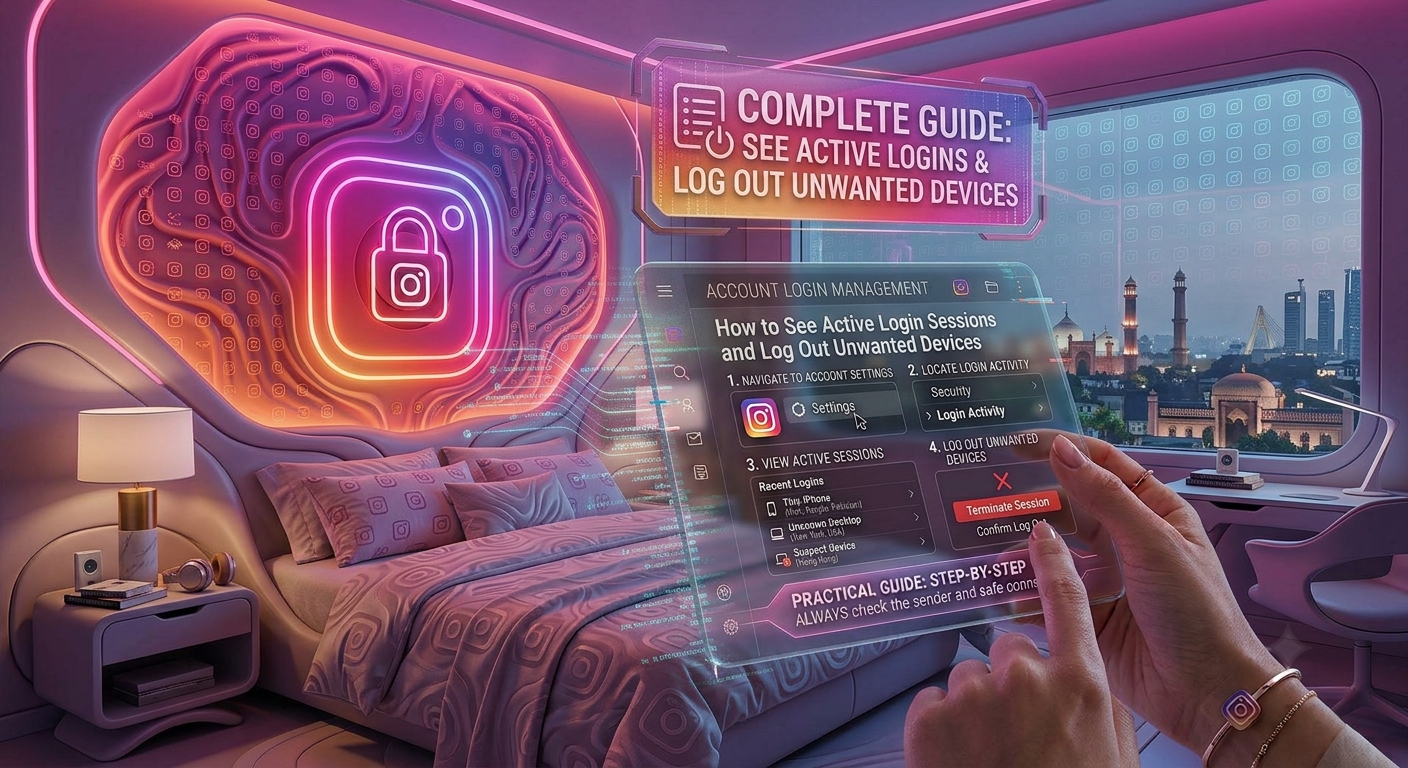
How to View Active Login Sessions on Instagram
Follow these steps using the Instagram mobile app.
Step 1: Open Instagram
Launch the Instagram app and log in to your account.
Step 2: Go to Your Profile
Tap your profile picture in the bottom-right corner.
Step 3: Open Settings
Tap the three horizontal lines in the top-right corner.
Select Settings and Privacy.
Step 4: Open Accounts Center
Tap Accounts Center.
Step 5: Go to Password and Security
Select Password and Security.
Step 6: Open “Where You’re Logged In”
Tap Where You’re Logged In.
Instagram will display every device currently signed in to your account, including:
- Device type
- Approximate location
- Login date
- Active session status
What Information Can You See?
| Information | Description |
|---|---|
| Device Name | Phone, tablet, or computer currently logged in |
| Approximate Location | City or region where the login occurred |
| Last Active Time | When the device was recently used |
| Current Device | Indicates the device you’re using now |
Review this list carefully and look for unfamiliar devices.
How to Log Out of Unwanted Devices
If you find a device you don’t recognize:
- Open Where You’re Logged In.
- Select the suspicious device.
- Tap Log Out.
- Confirm your choice.
The selected device will immediately lose access to your Instagram account.
What If You Don’t Recognize a Login?
If you see a login from an unknown location:
- Log out of that device immediately.
- Change your Instagram password.
- Enable Two-Factor Authentication.
- Review your email security.
- Check if your phone number and recovery email have been changed.
These steps help prevent future unauthorized access.
Enable Two-Factor Authentication
Two-Factor Authentication (2FA) adds an extra layer of security.
Even if someone steals your password, they won’t be able to log in without your verification code.
For better security, use an authenticator app instead of SMS whenever possible.
Tips to Keep Your Instagram Account Secure
Following these habits can significantly improve your account security.
| Security Tip | Benefit |
|---|---|
| Review login sessions regularly | Detects unauthorized devices quickly |
| Use a strong password | Makes guessing your password more difficult |
| Enable Two-Factor Authentication | Adds an extra login verification step |
| Never share verification codes | Prevents account takeover |
| Log out of shared devices | Protects your account after using someone else’s phone |
Common Mistakes to Avoid
Many users accidentally leave their accounts vulnerable.
Avoid these common mistakes:
- Staying logged in on public computers.
- Sharing your password with friends.
- Ignoring login notification emails.
- Using the same password on multiple websites.
- Never checking active login sessions.
Regular account reviews can help prevent security problems before they become serious.
What to Do If Your Account Has Been Hacked
If you believe someone has accessed your account:
- Change your Instagram password immediately.
- Log out of every unknown device.
- Enable Two-Factor Authentication.
- Secure your linked email account.
- Review your recovery information.
- Check for unauthorized profile changes.
The faster you act, the easier it is to regain full control of your account.
Frequently Asked Questions
Can I see every device logged into my Instagram account?
Yes. Instagram allows you to view all active login sessions through Accounts Center → Password and Security → Where You’re Logged In.
Can I log out of one device without affecting others?
Yes. You can remove a single device while keeping your current device logged in.
What if I don’t recognize a login location?
Log out of that session immediately, change your password, and enable Two-Factor Authentication.
How often should I review my login sessions?
Checking once every month—or whenever you receive a login alert—is a good security practice.
Does changing my password log out other devices?
In many cases, yes. Changing your password may require other devices to sign in again, especially if Instagram detects suspicious activity.
Final Thoughts
Checking your active login sessions is one of the easiest ways to keep your Instagram account secure. By regularly reviewing logged-in devices, removing unfamiliar sessions, and enabling Two-Factor Authentication, you can greatly reduce the risk of unauthorized access. A few minutes spent reviewing your account today can save you from losing it tomorrow.
At Nobbe.site, we publish trusted technology guides, cybersecurity tips, and practical Instagram tutorials to help users stay safe online. Visit Nobbe.site for more expert advice on social media security, privacy settings, and the latest digital safety tips.